2.1 Creating Users and Computers
In this series we will learn how to use powershell for Active directory usual tasks, of course you can use the Active Directory Users and Computers (ADUC) but what if you need to create multiple users at once? or the ADUC is not available for some reason? whatever bro, learning powershell is funny!
Import the AD Module
Note: you should be in an AD environment with a high privileges to be able to execute these commands.
Keep in mind that before you can work with Active Directory and its objects, you need to import the Active Directory module for Windows PowerShell if you use Windows Server 2008 R2, else it’s enabled by default.
if you want to import it you could use this command:
Import-Module ActiveDirectory
Creating a New User
You can create new user accounts in Active Directory using the cmdlet New-ADUser. to know the full syntax of this command you could use this:
Get-Command New-ADUser -Syntax
and this is how to create a new user:
New-ADUser ammar.xle0x
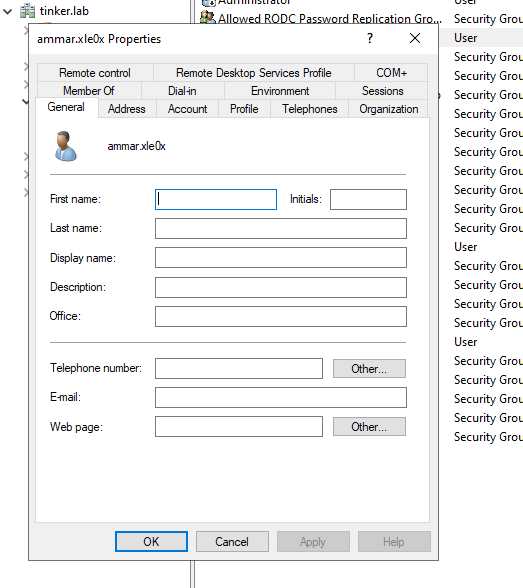
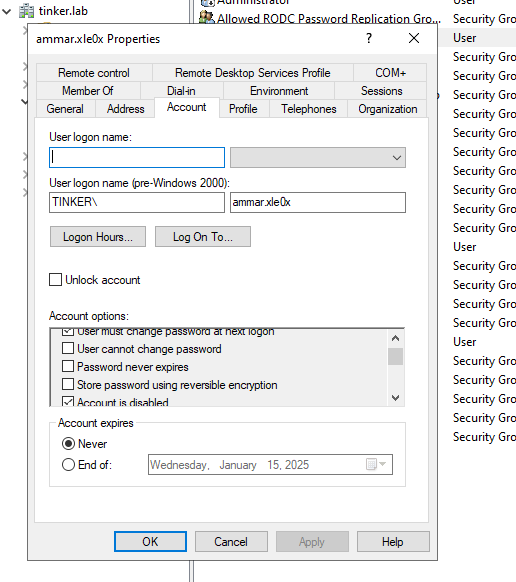
Accounts are created with the following default properties:
- Account is created in the “Users” container.
- Account is disabled.
- Account is a member of Domain Users group.
- No password is set.
- User must reset the password at the first logon.
now let’s create a new account with the following attributes:
- Name — Khaled Ahmed
- Given Name — Khaled
- Surname — Ahmed
- Account Name — khaled.ahmed
- User Principal Name —
khaled.ahmed@tinker.lab - Path — “OU=IT,DC=tinker,DC=lab”
- Password Input — Required
- Status — Enabled
New-ADUser -Name "Khaled Ahmed" -GivenName "Khaled" -Surname "Ahmed" -SamAccountName "khaled.ahmed" -UserPrincipalName "khaled.ahmed@tinker.lab" -Path "OU=IT,DC=tinker,DC=lab" -AccountPassword(Read-Host -AsSecureString "Input Password") -Enabled $true
Note that the password should meet the length, complexity and history requirements of your domain security policy.
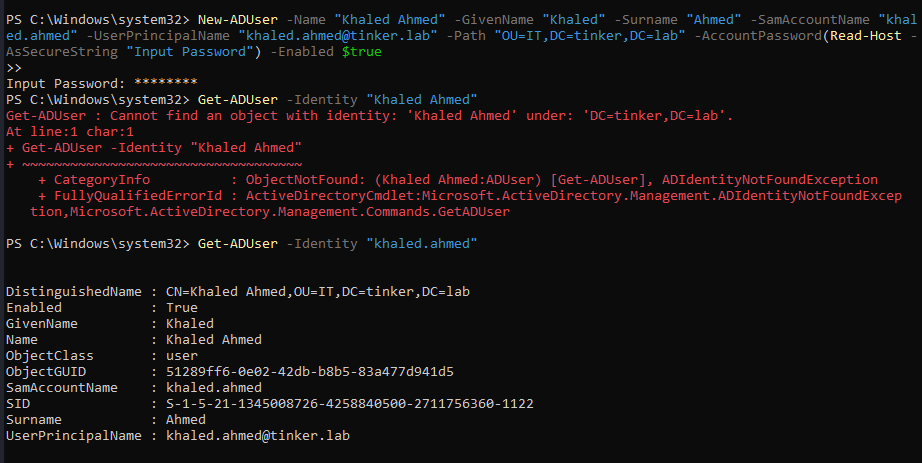
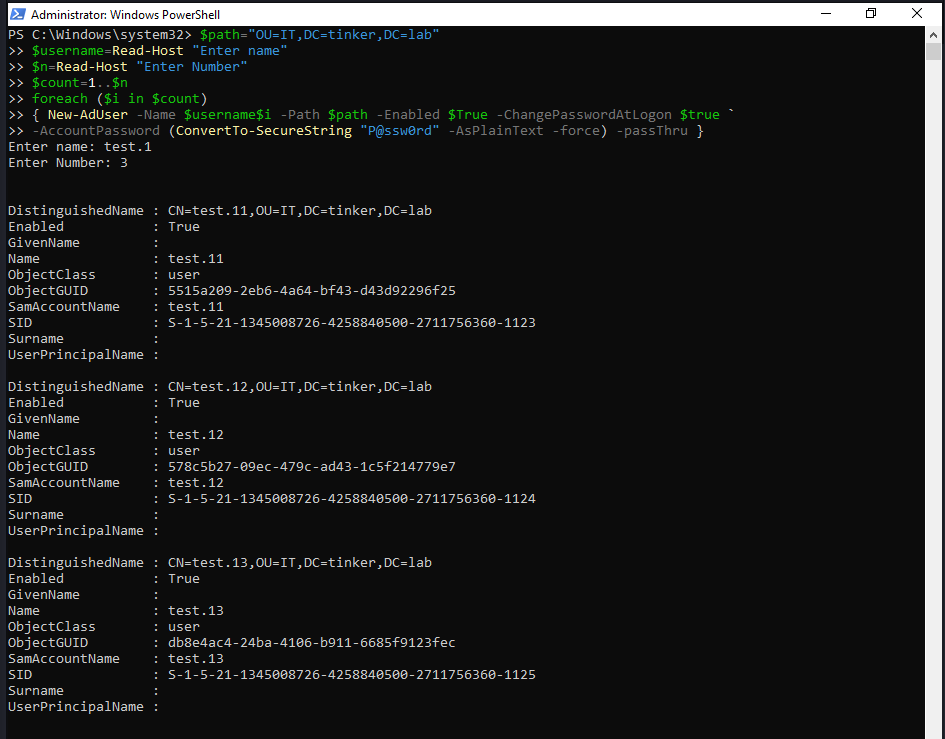
to create bulk of users in IT OU with a password of “P@ssw0rd” we could use this script:
$path="OU=IT,DC=tinker,DC=lab"
$username=Read-Host "Enter name"
$n=Read-Host "Enter Number"
$count=1..$n
foreach ($i in $count)
{ New-AdUser -Name $username$i -Path $path -Enabled $True -ChangePasswordAtLogon $true `
-AccountPassword (ConvertTo-SecureString "P@ssw0rd" -AsPlainText -force) -passThru }
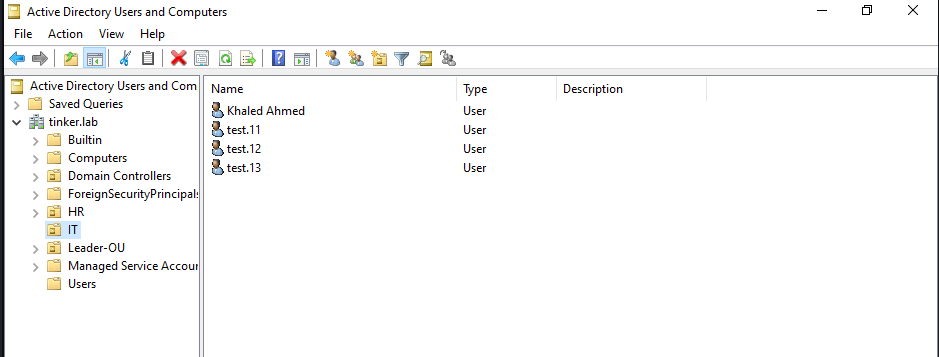
this will ask for the number of users to be added and there names.
Create Users from a CSV file
another great way of creating bulk users is by importing them from a CSV file.
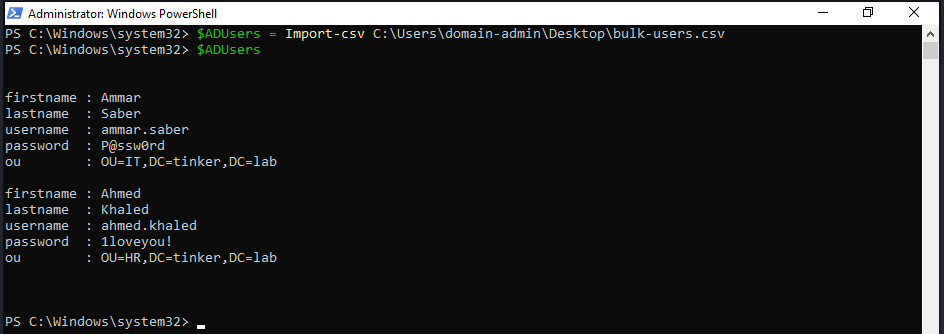
The CSV file must be in UTF8 encoding and contain contact data that looks like this:

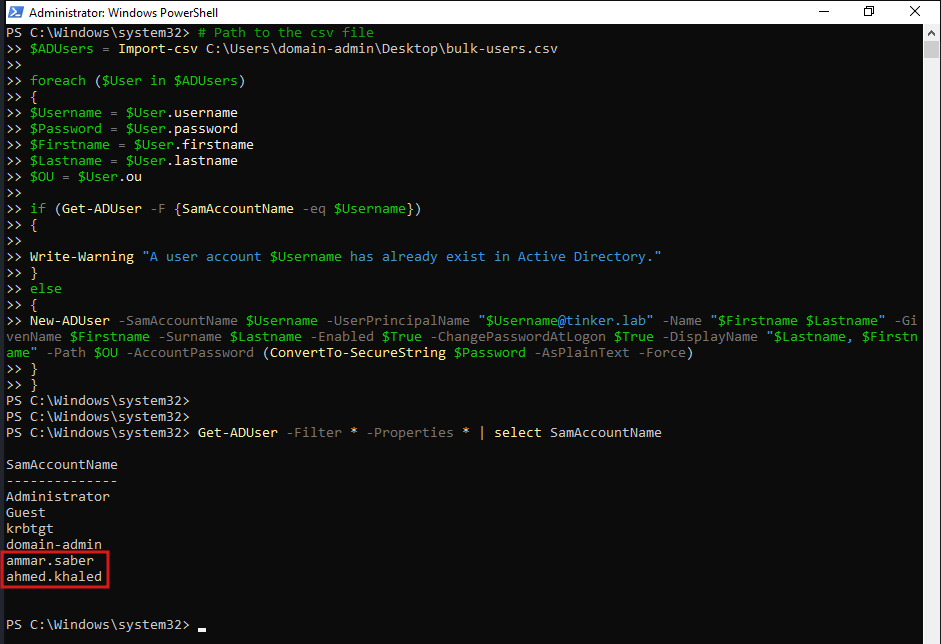
The following script will create enabled user objects for any users in the CSV that don’t already have accounts in AD. The “Reset password at the next logon” option will be enabled for the new accounts, so they can use their default password:
# Path to the csv file
$ADUsers = Import-csv C:\Users\domain-admin\Desktop\bulk-users.csv

foreach ($User in $ADUsers)
{
$Username = $User.username
$Password = $User.password
$Firstname = $User.firstname
$Lastname = $User.lastname
$OU = $User.ou

if (Get-ADUser -F {SamAccountName -eq $Username})
{

Write-Warning "A user account $Username has already exist in Active Directory."
}
else
{
New-ADUser -SamAccountName $Username -UserPrincipalName "$Username@tinker.lab" -Name "$Firstname $Lastname" -GivenName $Firstname -Surname $Lastname -Enabled $True -ChangePasswordAtLogon $True -DisplayName "$Lastname, $Firstname" -Path $OU -AccountPassword (ConvertTo-SecureString $Password -AsPlainText -Force)
}
}
Create a new computer
To create a computer object, use the New-ADComputer cmdlet. For example, execute the following cmdlet parameters to create a computer object with “WSIT01” as its name and the default LDAP path value:
New-ADComputer -Name "WSIT01" -SamAccountName "WSIT01"
Create Bulk of computers from a CSV file
your csv file should look something like this:

then run this script to create these computers:
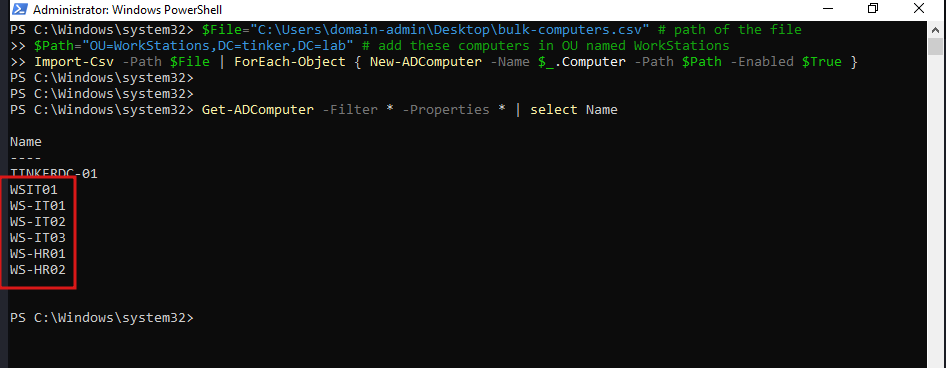
$File="C:\Users\domain-admin\Desktop\bulk-computers.csv" # path of the file
$Path="OU=WorkStations,DC=tinker,DC=lab" # add these computers in OU named WorkStations
Import-Csv -Path $File | ForEach-Object { New-ADComputer -Name $_.Computer -Path $Path -Enabled $True }
Make sure the specified OU is already created!